

A new computer often brings better speed and performance. Many business owners upgrade their systems for this reason. QuickBooks users also need to move their accounting software during this change. A simple process can complete the task quickly. This guide explains how to transfer QuickBooks software from one computer to another in easy steps.
Table of Contents
How to Transfer QuickBooks Software From One Computer to Another
Here are complete step how to transfer quickbooks software from one computer to another computer for beginners students.
Method 1: Prepare Your Old Computer
Before transferring QuickBooks, the old computer must be ready. A proper setup keeps data safe and ensures a smooth transfer.
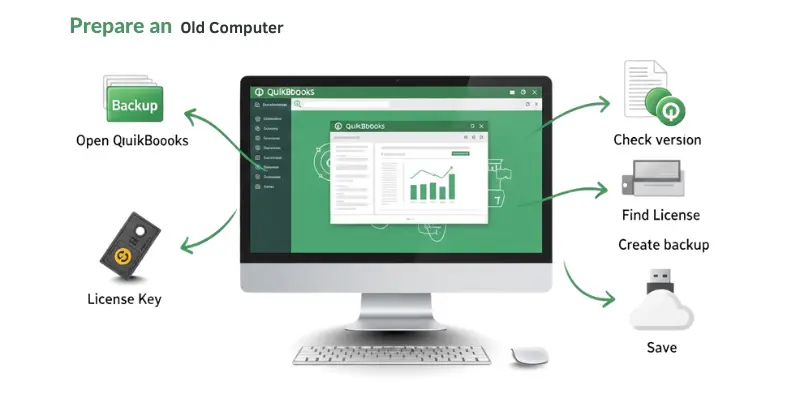
Steps to Prepare Your Old Computer:
- Open QuickBooks on the old computer.
- Check the QuickBooks version; it must match the new computer.
- Locate the license number and product key.
- Update QuickBooks to the latest release of 2026.
- Create a backup of your company file:
- Go to File → Backup Company → Create Local Backup.
- Save the backup on a USB drive or cloud storage.
- Close QuickBooks properly before moving files.
Method 2: Install QuickBooks on the New Computer
Before opening company files, QuickBooks must be installed on the new computer. A correct installation ensures all data works properly.
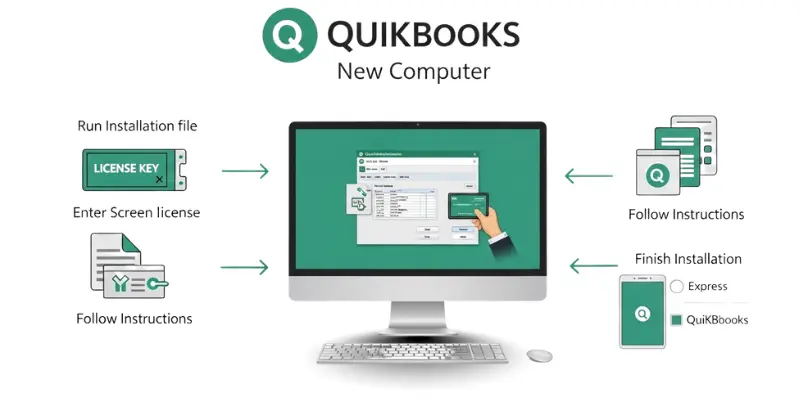
Steps to Install QuickBooks on the New Computer:
- Run the QuickBooks installation file on the new computer.
- Enter the license number and product key from the old computer.
- Follow on-screen instructions to complete installation.
- Choose the installation type: Express (Recommended) or Custom & Network.
- Wait until QuickBooks finishes installing.
- Open QuickBooks to confirm it runs without errors.
- Keep the software updated after installation.
Method 3: Transfer Company File
After installing QuickBooks on the new computer, the company file must be moved. A correct transfer ensures all financial data stays safe.
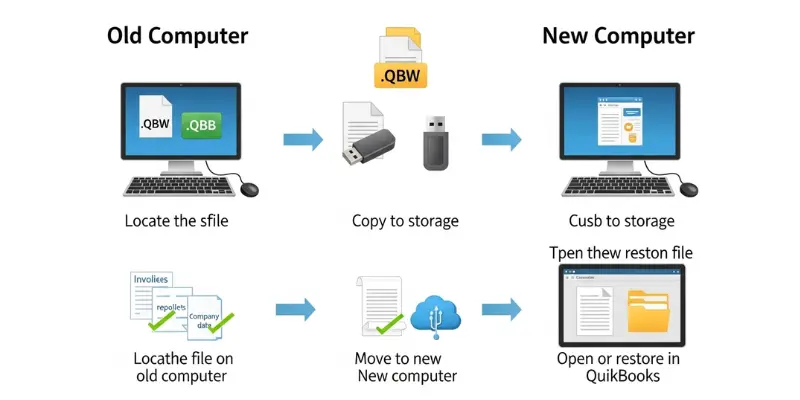
Steps to Transfer Company File:
- Locate the company file on the old computer.
- The file usually ends with .QBW.
- Common location: Documents → QuickBooks → Company Files.
- Create a backup if not already done:
- Open QuickBooks → File → Backup Company → Create Local Backup.
- Copy the company file or backup to a storage device:
- Use a USB drive, external hard drive, or cloud storage.
- Move the file to the new computer:
- Paste the file in a folder where QuickBooks can easily find it.
- Example: Documents → QuickBooks → Company Files.
- Open QuickBooks on the new computer.
- Restore or open the company file:
- Option 1: Open Company File
- Select Open or Restore Company → Open a Company File → Locate the file → Click Open.
- Option 2: Restore Backup File
- Select Open or Restore Company → Restore a Backup Copy → Local Backup → Locate .QBB file → Click Restore.
- Option 1: Open Company File
- Confirm the transfer:
- Open invoices, reports, and other company data.
- Check that all information is correct.
- Keep the old computer backup for safety until you are sure everything works on the new computer.
Method 4: Restore or Open the File on the New Computer
After moving the company file, it must be opened or restored in QuickBooks. This step makes the data ready to use.
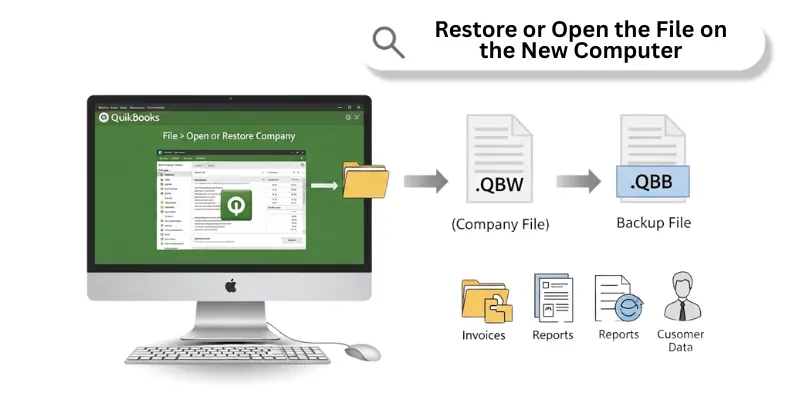
Steps to Restore or Open the File:
- Open QuickBooks on the new computer.
- Click File → Open or Restore Company.
- Choose the option based on your file type:
- Open a Company File → For .QBW files.
- Restore a Backup Copy → For .QBB backup files.
- Locate the file on the new computer:
- Navigate to the folder where you copied or saved the file.
- Select the file and click Open (for .QBW) or Restore (for .QBB).
- Follow the on-screen instructions to complete the restore process.
- Wait until QuickBooks finishes opening or restoring the file.
- Check that all data is correct:
- Open invoices, reports, customer lists, and other company information.
- Keep the old computer backup until you confirm everything works properly.
Method 5: Verify Transfer
After opening or restoring the company file on the new computer, it is important to check that all data transferred correctly.
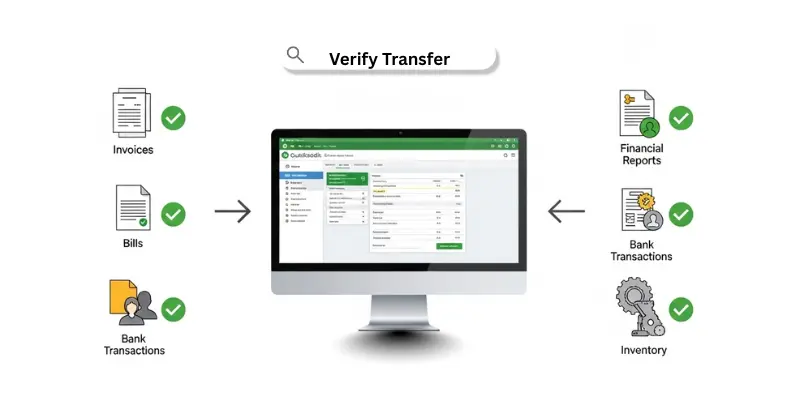
Steps to Verify Transfer:
- Open QuickBooks on the new computer.
- Open the company file that was transferred.
- Check invoices and bills:
- Make sure all customer invoices and vendor bills are visible.
- Check reports:
- Open balance sheets, profit and loss reports, and other financial reports.
- Confirm that all numbers are correct.
- Check customer and vendor lists:
- Ensure all names, addresses, and details are complete.
- Check bank accounts and transactions:
- Verify that all deposits, withdrawals, and balances match the old computer.
- Check items, inventory, and products:
- Make sure all stock items and services are correct.
- Test creating a new invoice or bill:
- Ensure QuickBooks works normally on the new computer.
- Keep the old computer backup until you confirm everything is correct.
Final Tips
After transferring QuickBooks, following these tips ensures smooth use and safety of data:
- Always keep a backup of the company file on the old computer.
- Use the same QuickBooks version on both computers.
- Keep the license number and product key safe.
- Update QuickBooks regularly after installation.
- Check all data after transfer to make sure nothing is missing.
- Close QuickBooks properly when not in use.
- Avoid editing files outside QuickBooks to prevent errors.
Conclusion
Transferring QuickBooks is easy if done carefully. Always backup your files and keep your license safe. Move and restore the company file step by step. Check all data to avoid mistakes. Protect your records and update QuickBooks regularly. Care and preparation keep your financial data safe and your work smooth.
FAQs
Here are some questions about transferring QuickBooks to another computer, written in simple English for students.
Can I transfer QuickBooks without losing data?
Yes, you can transfer QuickBooks safely by creating a backup of your company file first. The backup keeps all invoices, reports, and customer information safe.
Do I need to buy QuickBooks again for the new computer?
No, you do not need to buy QuickBooks again. Your valid license allows you to install the software on another computer.
How do I move the company file?
You can copy the company file (.QBW) or backup file (.QBB) to a USB drive, external hard drive, or cloud storage. Then, open or restore it on the new computer using QuickBooks.
Which file should I use to restore QuickBooks?
Use the .QBW file if you want to open the company file directly. Use the .QBB file if you are restoring from a backup.
What if QuickBooks won’t open the transferred file?
Check that the QuickBooks version on the new computer matches the old one. Also, make sure the file is not corrupted. If needed, restore from the backup file.
Can I use QuickBooks on two computers at the same time?
It depends on your license type. Some licenses allow installation on multiple computers, while others allow only one installation.
How do I verify the transfer?
Open invoices, reports, customer lists, and bank transactions on the new computer. Make sure all information matches the old computer.
Should I keep the old backup?
Yes, keep the backup on the old computer or storage device until you confirm everything works properly on the new computer.
