

Computers come with default backgrounds, but most people like to change them. It is simple to personalize a computer screen. Changing the background can make it look fresh, fun, or even relaxing. Here is an explanation of how to change your computer background for beginner students.
What is a Computer Background?
A computer background is also called a wallpaper. It is the main image that shows on the screen behind the icons. They are usually pictures, colors, or themes. There are different types of computer backgrounds:
- Picture: A photo or image.
- Solid color: A simple color with no image.
- Slideshow: A set of images that change automatically.
- Theme: A combination of wallpaper, colors, and sounds.
How Do You Change Your Computer Background?
Yes, here is a simple step-by-step guide for students on how to change the background on their computer.
Method 1.
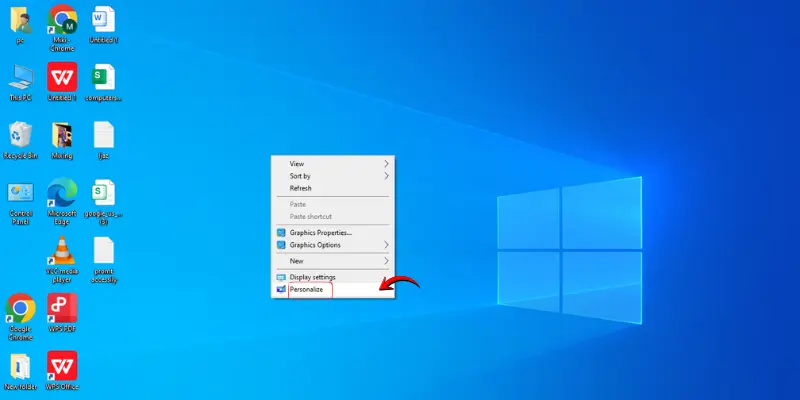
- Right click anywhere on the desktop.
- Click Personalize from the menu.
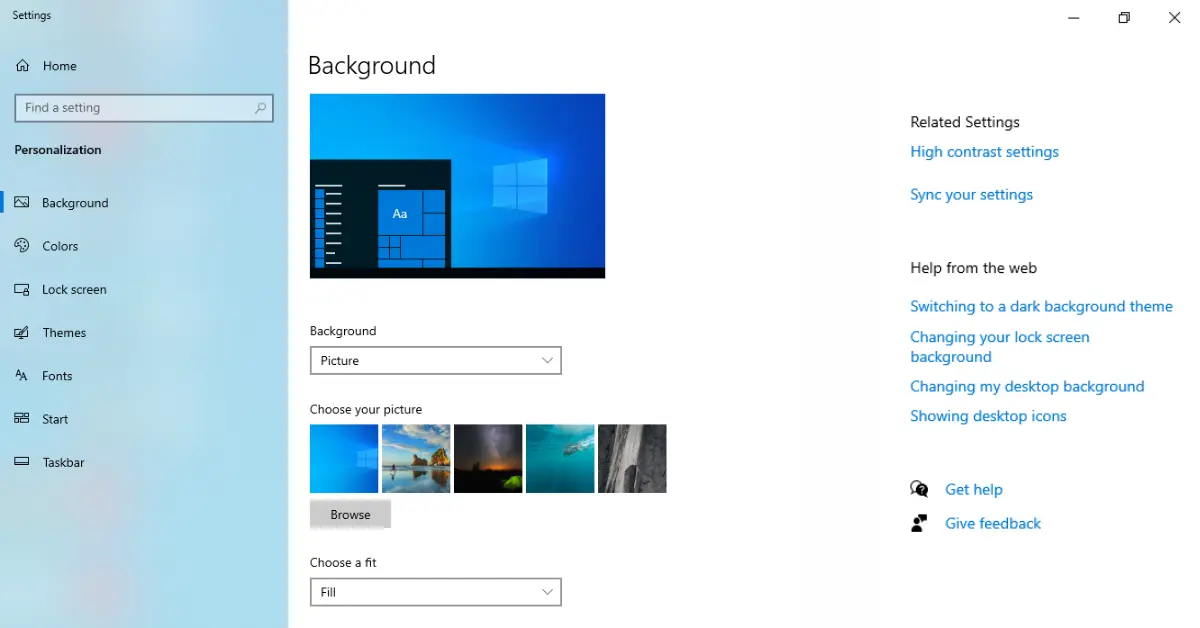
- In the settings window, click Background on the left side.
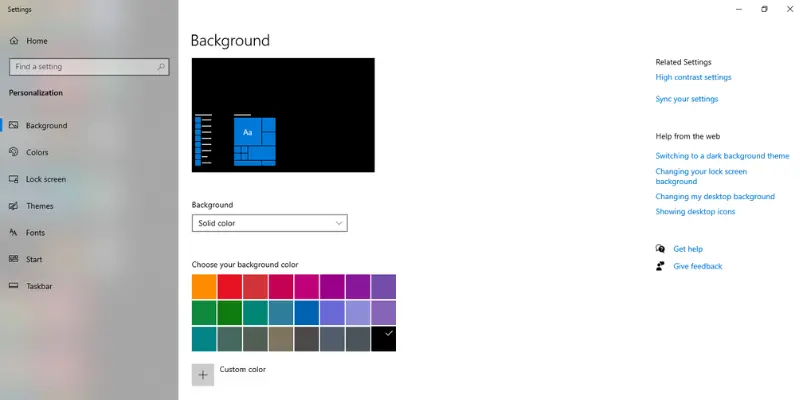
- Choose the Type of Background
- Picture: Pick a photo from the computer or browse for your own.
- Solid Color: Select a simple color for the background.
- Slideshow: Choose a folder of images that change automatically.
- Select an Picture, Solid Color and Slideshow
- Click Browse to find your favorite picture.
- Click on the image to set it as your desktop background.
- Adjust Background Settings (Optional)
- Under Choose a fit, select Fill, Fit, Stretch, Tile, Center, or Span depending on the image size.
- Apply the Background
- The background changes immediately. Close the settings window when done.
Method 2. Using File Explorer
- Open the folder with the desired image.
- Right click the image.
- Click Set as desktop background.
Method 3. Using Themes
- Go to Settings → Personalization → Themes.
- Choose a pre-made theme or download one online.
- Click Apply to change the wallpaper, colors, and sounds.
Conclusion
Changing a computer background is easy and fun. It is a simple way to make the screen look personal and nice. There are easy steps for both Windows and Mac users. Students can use their favorite pictures, colors, or themes to refresh their desktop. Everyone shall try changing their background to make their computer more enjoyable.
FAQs about How Do You Change Your Computer Background?
Many people ask questions about how do you change your computer background. Here are complete answers about changing the computer background for students.
Can students change their computer background?
Yes, students can easily change the background on both Windows and Mac computers.
How do you change a background on Windows?
Right-click the desktop → Personalize → Background → Choose Picture, Solid Color, or Slideshow → Select image → Done.
How do you change a background on Mac?
Click Apple menu → System Preferences → Desktop & Screen Saver → Choose image → Done.
Can someone use their own photo as a background?
Yes, they can use any image saved on their computer.
Can the background be animated?
Yes, but animated backgrounds may slow the computer.
Will changing the background affect the computer’s performance?
No, changing the background is safe and does not harm the computer.
How often should someone change their computer background?
They are free to change it anytime. Some change daily, while others leave it for months.
